
Email Signatures
Official UofM Email Signature - Instructions - MAC
If using a Mac with Microsoft Outlook
STEP 1:
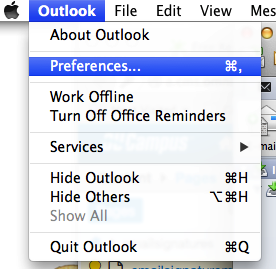
- Open Microsoft Outlook
- Click to edit "Preferences"
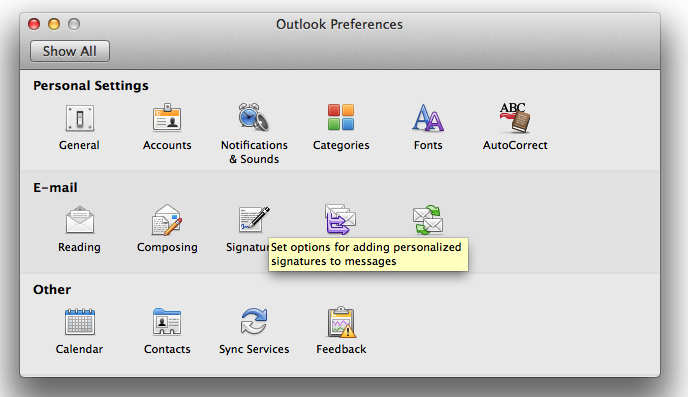
- Select "Signatures"
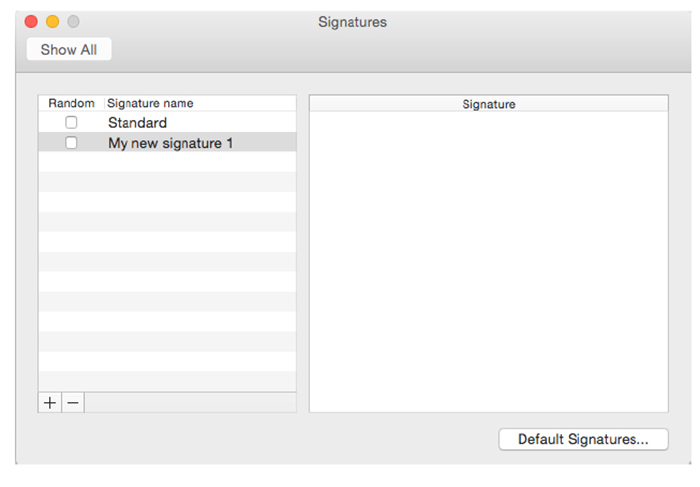
- Click the "+" button to create a new signature
- In the content area on the left, paste the signature that you copied by typing "Command+V"
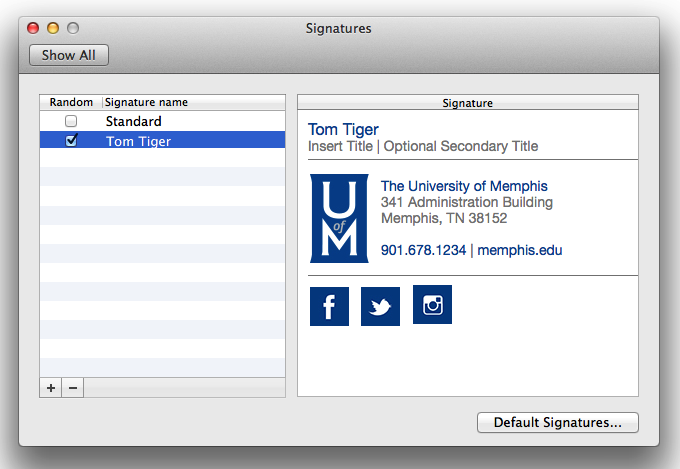
- In order to ensure the signature pastes properly, select the "Paste Options" box as shown below:
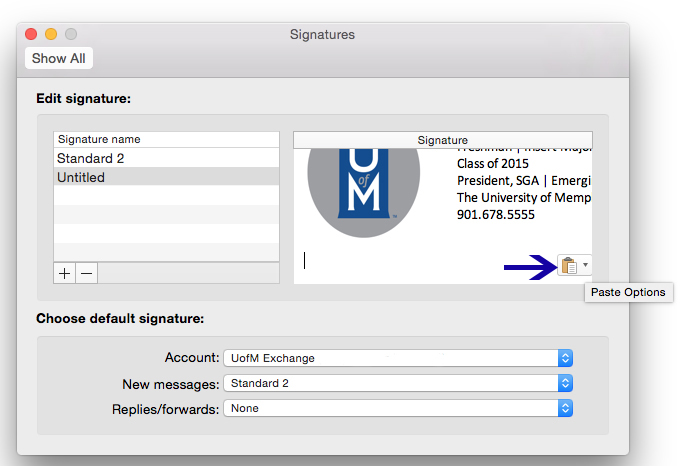
- Select "Keep Source Formatting"
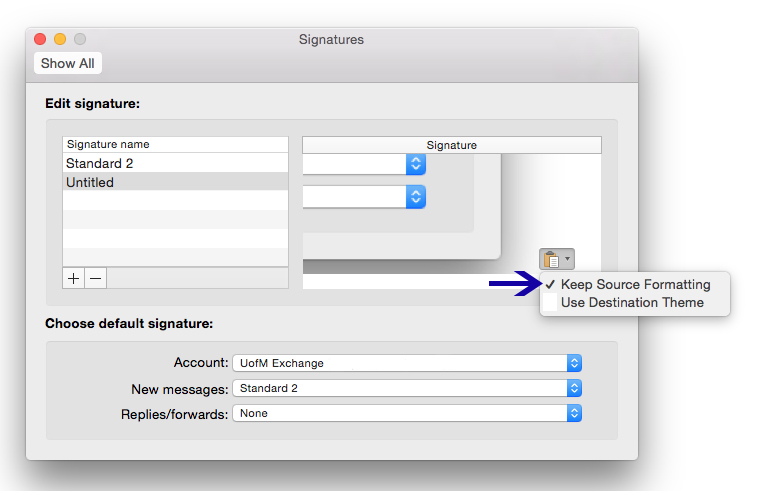
- You can now edit the text. Please follow standards outlined here.
STEP 2:
- Social Media Icons (optional)
- The icons currently shown link to the UofM's social media. If you would like to edit
the icons to represent your organization's platforms, contact m.carrier@memphis.edu and include social media links. A custom signature will be created for you.
- Additional buttons are available for YouTube, LinkedIn, etc. Action buttons such as
Apply Now, Buy Tickets, Make a Gift, etc. can be created upon request.
- Icons must retain the same shape and blue color.
- Including social media icons is optional.
- The icons currently shown link to the UofM's social media. If you would like to edit
the icons to represent your organization's platforms, contact m.carrier@memphis.edu and include social media links. A custom signature will be created for you.
- To set your new signature, select "Default Signatures" in the lower right corner of the pop-up box
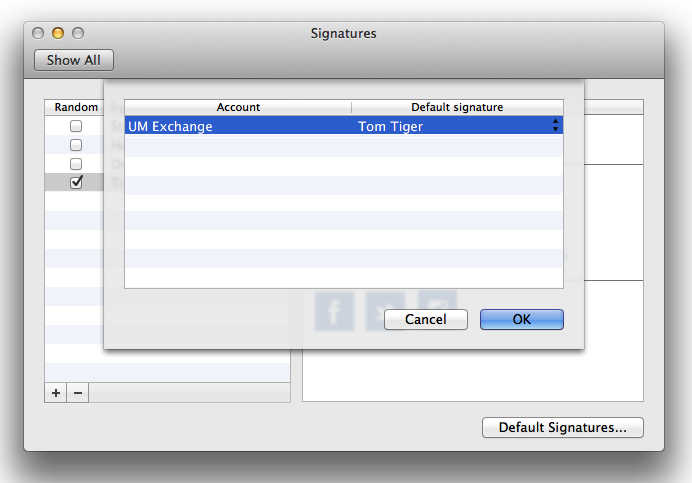
- Select your new signature from the dropdown box. All new emails and responses will now include this signature.
Truncated Signature for Replies/Forwards
Outlook for Mac does not have a setting to select different signatures for new emails vs. replies. You can create a secondary signature and manually select it for replies/forwards if you wish.
- Follow the directions above and create a new signature. Delete the images to leave only your name and title.
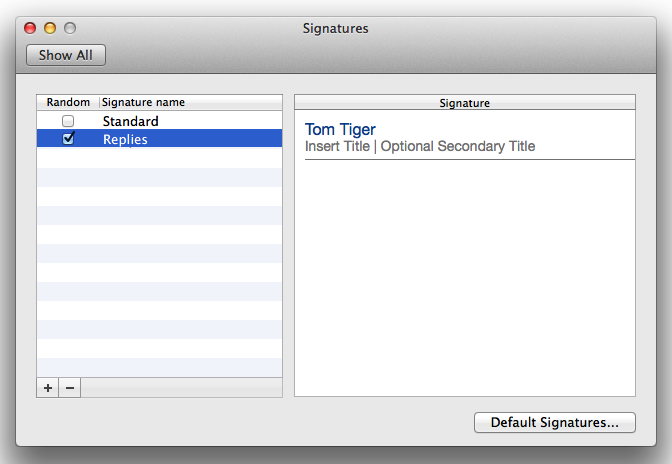
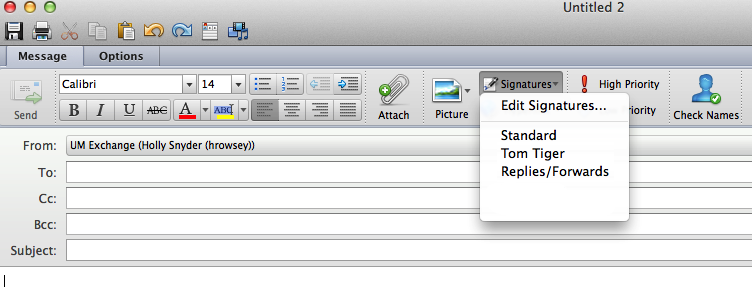
- When sending a reply, select the "Signatures" box and click on the "replies/forwards" signature
For additional support, please contact mktgweb@memphis.edu.