
Canvas
Changing Course Offering Names
DA Instructions for Manually Changing Course Offering Names
1. Locate your courses using the 'Course Management' feature.
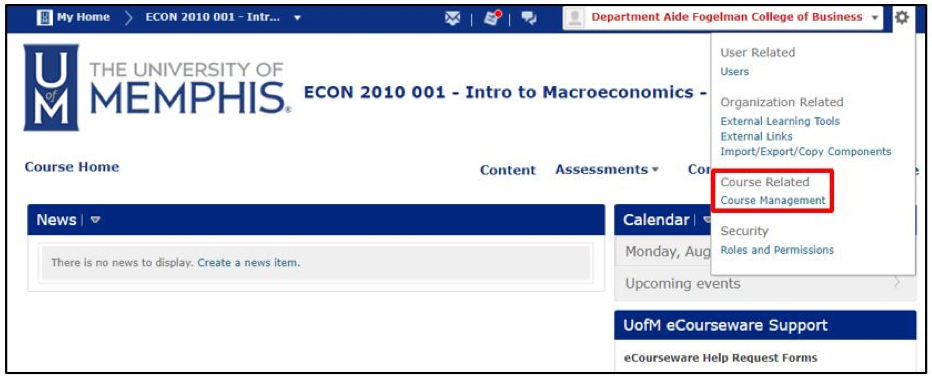
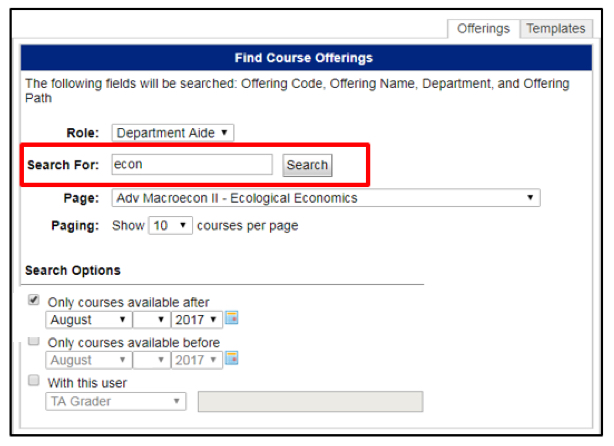
2. Under 'Find Course Offerings', enter the Department Code or CRN in the 'Search For' field and click 'Search'. To narrow your search, select a date range under 'Search Options'.
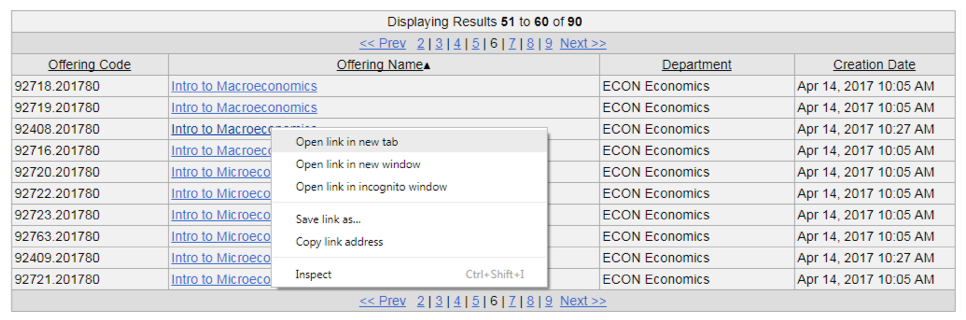
3. You should now see your search results. Select the course in question. To keep your search results displayed, you can 'right-click' and 'open link in new tab'.
4. While in the new tab, click on 'Edit Course', then click 'Course Offering Information'.
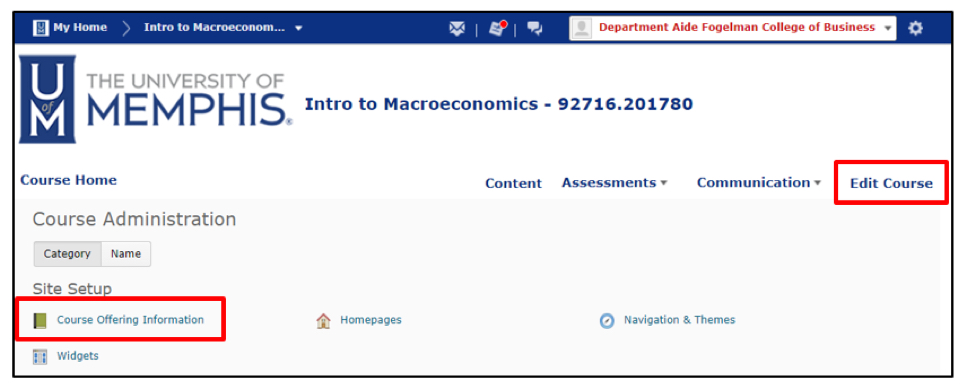
5. You will now see the Course Offering Information, including the existing Course Offering Name.
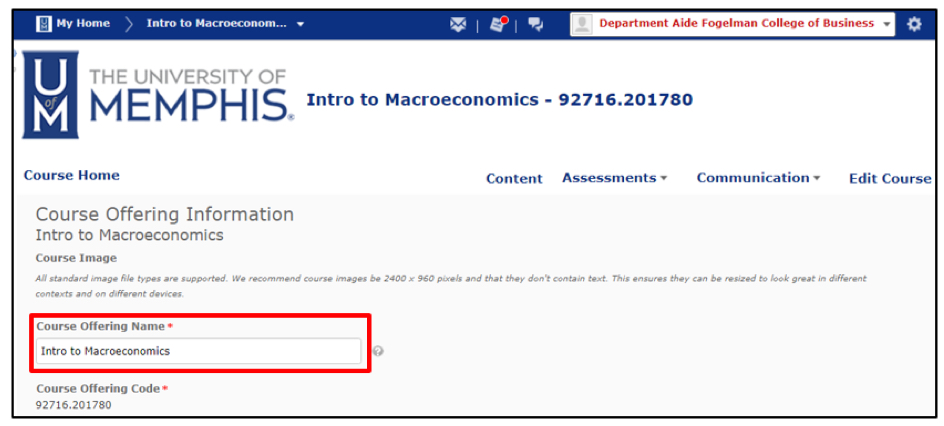
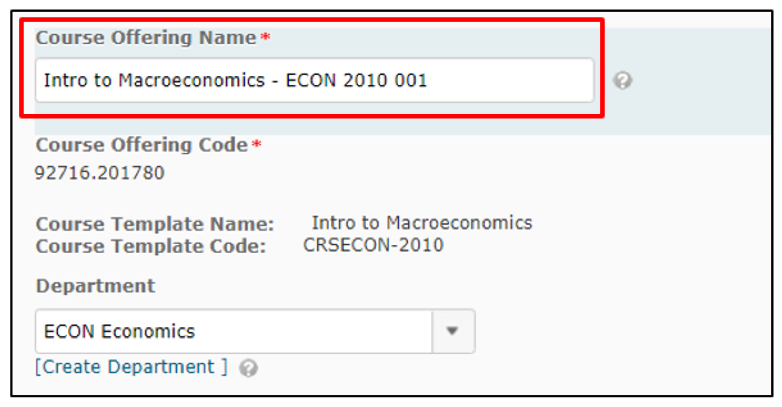
6. Under 'Course Offering Name', you will add the Course Prefix, Code and Section* AFTER the Course Title, then 'Save'. Your new Course Offering Name should follow the format below:
(COURSE TITLE) (space) (dash) (space) (COURSE PREFIX) (space) (COURSE CODE) (space) (COURSE SECTION)Intro to Microeconomics – ECON 2010 001
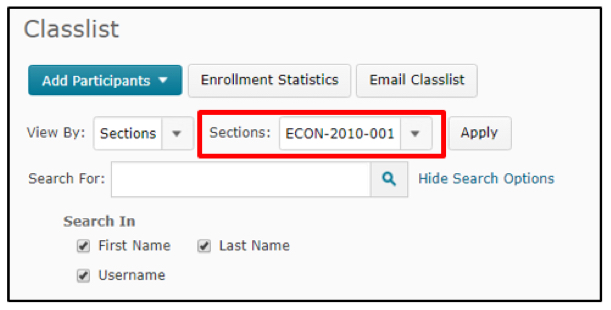
*To locate the section number of your course, go to your Classlist, change the 'View By' criteria to 'Sections'. Click 'Apply'. This will display the Course section as shown below.
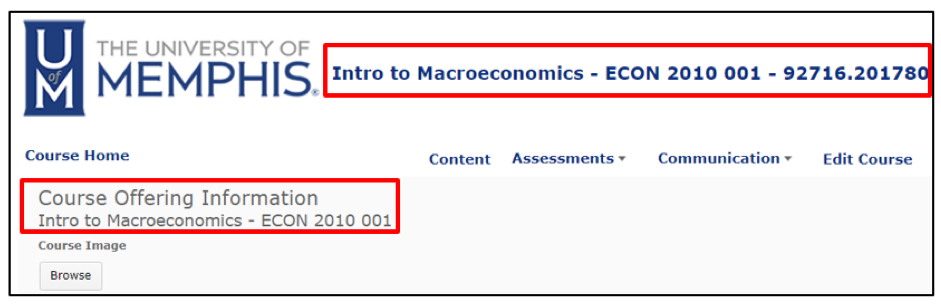
7. Save your changes and the new Title will be displayed beneath 'Course Offering Information'. In addition, the Header will automatically include the new Name, followed by the CRN and Term Code.
8. Once you have completed the name change, place a service request. This is so the CTL staff can track name changes and double check to verify everything has been done correctly. Please fill one out for each course name change you complete (you can enter up to five courses per ticket). This will allow us to keep up with and report the number of course name changes in our system.